
WooCommerce already shows “Related products” under each product. The problem is control. You can’t easily choose which products appear, keep out-of-stock items away, or put a different set on the cart page.
Good product recommendations fix that. They show shoppers items that actually fit what they’re looking at, which can lead to bigger orders without any pushy sales tactics.
In this tutorial, you’ll learn how to add WooCommerce product recommendations to your product pages and cart using ShapedRecommend, a free plugin by ShapedPlugin. You’ll set simple rules, choose a layout, and place recommendations exactly where you want them. No code needed.
What is ShapedRecommend?
ShapedRecommend is a free WooCommerce plugin for building product recommendation blocks. Instead of relying on WooCommerce’s fixed related products, you create “recommendations”: each one decides which products to show, where to show them, and how they look.
What the free version gives you:
- Four starting templates: Related Products, Up-sells (You May Also Like), Cross-sells (Cart), and Frequently Bought Together
- Product, category and cart page placements, plus a shortcode and a block for custom spots
- Rule-based product selection with filters for category, tag, on sale, in stock, featured and price
- Sorting by popularity or price
- Pinned products you always want shown first
- Grid or Inline list layouts, with columns per device
- Device conditions (mobile, tablet, desktop)
- Basic analytics for the last 7, 14 or 30 days
- Switches to hide WooCommerce’s default related, up-sell and cross-sell sections
ShapedRecommend Pro adds checkout and thank-you page placements, popups, bundle boxes, recommendations based on your past orders, and more filters. We’ll stick to free features here.
Step 1: Install and activate ShapedRecommend
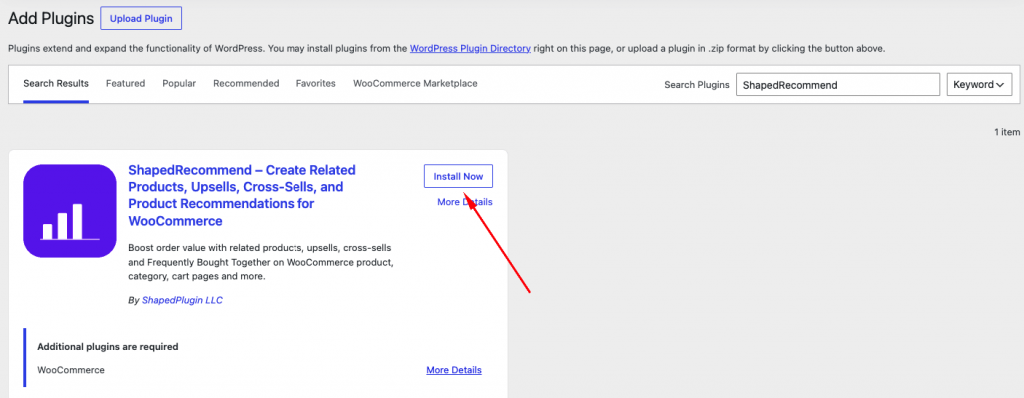
- Go to Plugins > Add New Plugin.
- Search for ShapedRecommend.
- Click Install Now on the plugin by ShapedPlugin LLC, then click Activate.
A new Recommend menu appears in your dashboard sidebar, with All Recommendations, New Recommend, Analytics, and Settings.
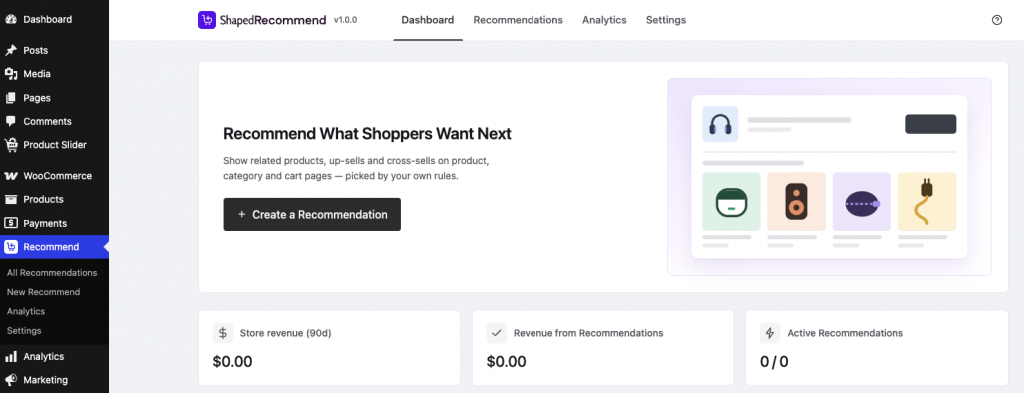
Step 2: Create a “You May Also Like” recommendation for product pages
Let’s start with the most common spot: below the product tabs on single product pages.
Choose a template
- Go to Recommend > New Recommend.
- In the template window, pick Related Products (under Improve Existing WooCommerce Slots).
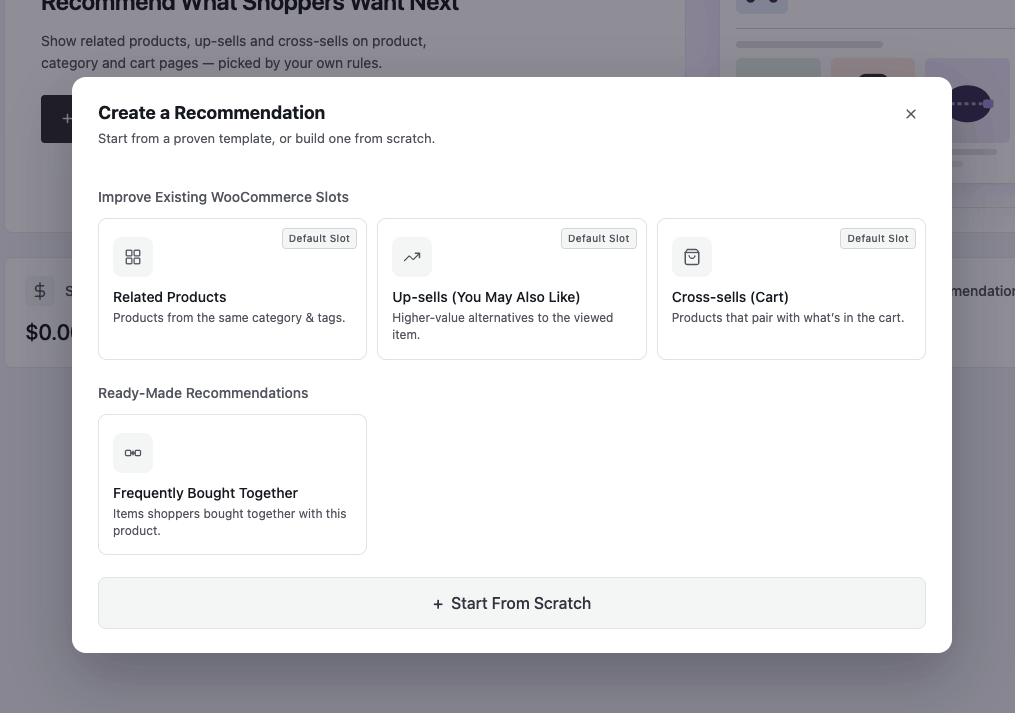
Templates are just starting points. They fill in sensible settings that you can change on the next screens. If you’d rather set everything yourself, choose Start From Scratch.
Set where and what to show (Setup tab)
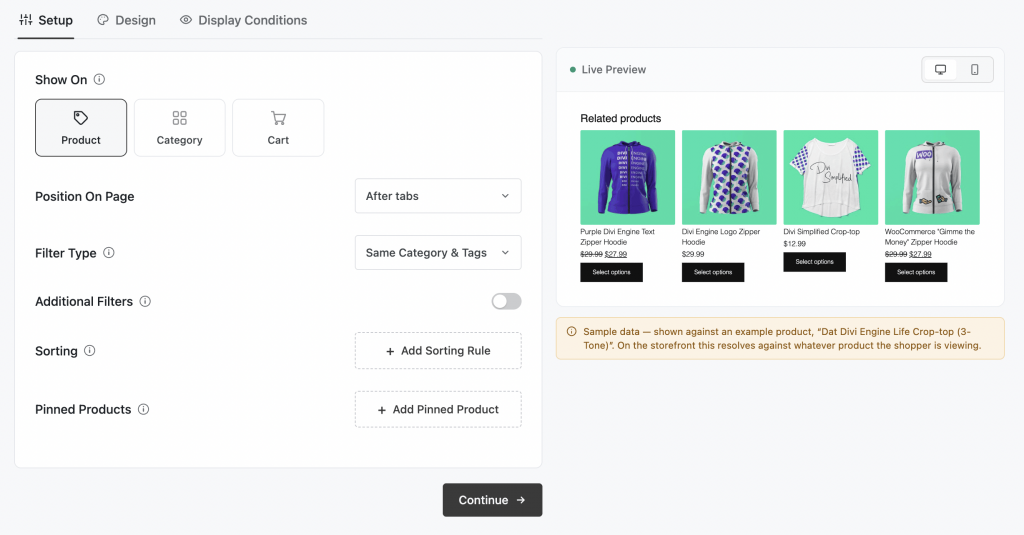
- Show On: choose Product.
- Position On Page: choose After tabs. This places the block where WooCommerce normally shows related products.
- Filter Type: leave it on Automatic for now.
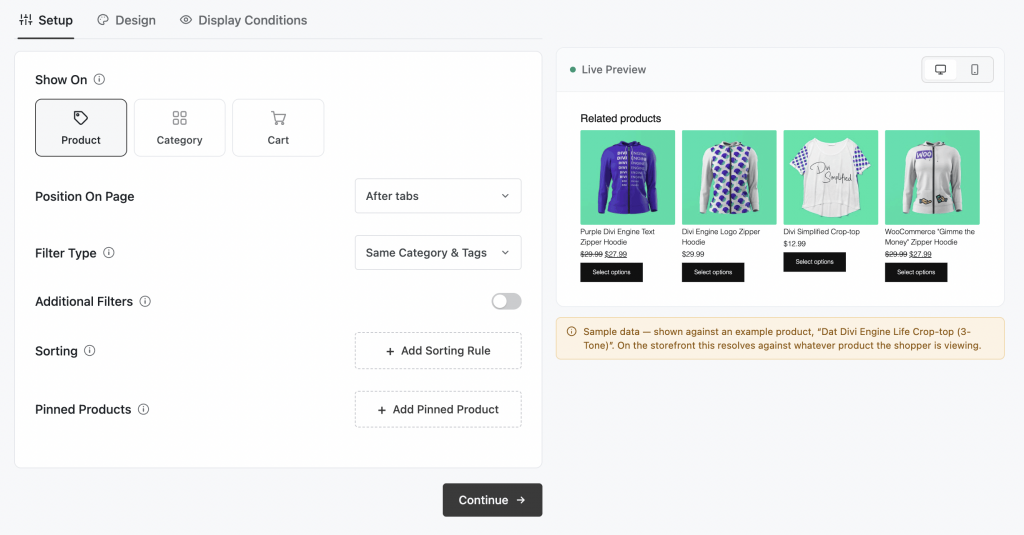
With Automatic, the plugin matches products from the same category and tags as the product being viewed. For most stores, that’s a good default.
Refine with filters, sorting, and pinned products (optional)
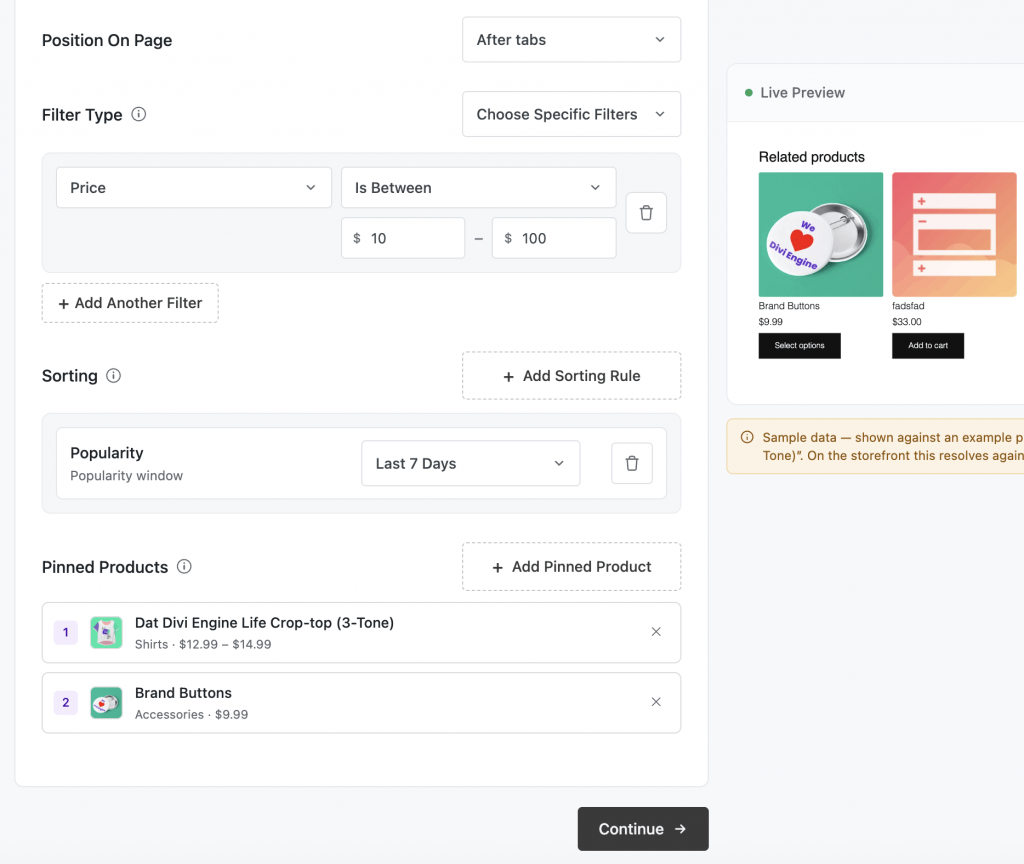
Want more control? Switch Filter Type to Choose Specific Filters. A few practical combinations:
- In Stock only, so shoppers never click through to an item they can’t buy
- On Sale, to highlight discounted items next to full-price products
- Price range, to keep suggestions close to the price of what the shopper is viewing
Then use Add Sorting Rule to sort by Popularity (best-sellers first) or Price.
Finally, Add Pinned Product lets you lock in one or more products to always appear first. It’s handy for a new launch or an accessory that fits almost everything.
Choose how it looks (Design tab)
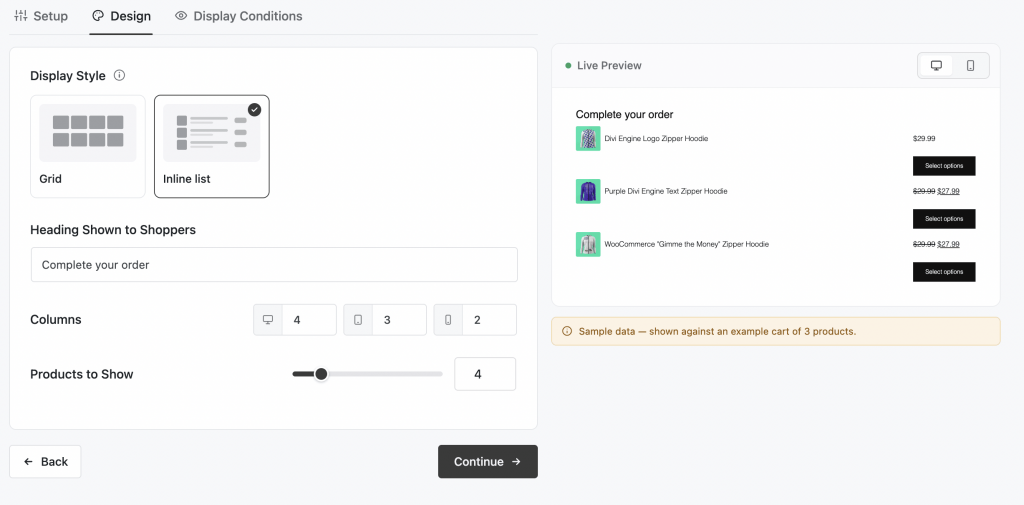
- Display Style: choose Grid for product cards, or Inline list for a compact row.
- Heading Shown to Shoppers: write the heading, such as “You may also like” or “Pairs well with”.
- Set columns for desktop, tablet, and mobile.
- Products to Show: 4 is a good starting point.
Keep the number of products matched to your columns. Four products in four columns gives one clean row.
Decide when it appears (Display Conditions tab)
The third tab controls when the recommendation shows. By default, there are no conditions, and the editor tells you so: “No conditions yet — this block is always shown.” For most product page recommendations, that’s exactly what you want.
To limit it, switch on Display Conditions (“Only show this recommendation when the conditions match”), then click + Add Condition. In the free version, you can target devices:
- Is Mobile
- Is Tablet
- Is Desktop
While you work, keep an eye on the Live Preview on the right. Use the desktop and mobile icons to switch views. The preview uses sample data from one example product in your store; on the live site, the recommendations are matched to whatever product the shopper is viewing.
Other conditions, such as cart total, visitor type, schedule and viewing category, are part of Pro.
Save and check your store
Click Save Changes. The recommendation goes live right away.
Open a product page in a private browser window and scroll below the tabs.
Step 3: Add cross-sells to the cart page
The cart is where shoppers have already decided to buy, so it’s a natural place for small add-ons.
- Go to Recommend > New Recommend and pick Cross-sells (Cart).
- Confirm Show On is Cart.
- Choose a Position On Page: Before table, After totals, or Empty cart.
- Leave Filter Type on Automatic. On the cart, it suggests products that pair with what’s in the cart.
- In the Design tab, use a short heading like “Complete your order” and an Inline list to keep the cart tidy.
- Click Save Changes.
Tip: The Empty cart position is worth setting up as a separate recommendation. Instead of a dead-end “Your cart is empty” message, shoppers see popular products to start again.
Step 4: Place recommendations anywhere with a shortcode or block
Want recommendations on a landing page, a blog post, or a custom page template?
- In the recommendation’s Setup tab, set Position On Page to Custom placement · Shortcode or Custom placement · Block.
- Click Save Changes.
For the shortcode, click Copy and paste it where you want it:
[shapedrecommend id="123"]For the block, open the page in the block editor, click +, search for ShapedRecommend, and choose your recommendation from the Recommendation dropdown.
The block also works in the Site Editor, which helps on block themes where classic WooCommerce hooks may not fire.
Note: A shortcode or block only displays a recommendation whose position is set to the matching custom placement. If you paste the shortcode and nothing shows, check that setting first.
Step 5: Hide WooCommerce’s default sections (optional)
Once your own recommendations are live, you may see WooCommerce’s built-in related products as well. To avoid showing two similar sections:
- Go to Recommend > Settings > General.
- Under WooCommerce Default Showcase, turn on Hide Related Products, Hide Up-sell Products and/or Hide Cross-sell Products.
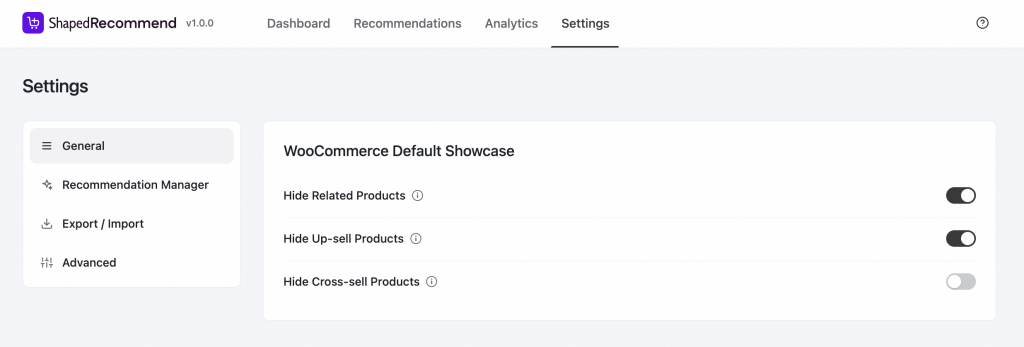
Be careful here. These switches apply to every page in your store. If a ShapedRecommend block doesn’t show on some product, that spot will simply be empty.
Step 6: Check how recommendations perform
Go to Recommend > Analytics to see views, clicks and results for each recommendation over the last 7, 14 or 30 days. Give a new recommendation at least a couple of weeks before judging it, and change one thing at a time so you can tell what helped.
Analytics relies on scheduled tasks. If the numbers stay empty, check WooCommerce > Status > Scheduled Actions to make sure WP-Cron is running.
Tips for better WooCommerce product recommendations
- Recommend what fits, not what’s expensive. A low-cost accessory next to a product is an easier yes for shoppers than a much pricier alternative.
- Always filter to in-stock products on product and cart pages.
- Use different recommendations per page type. Similar items on product pages; small add-ons in the cart.
- Write human headings. “Pairs well with this jacket” beats “Recommended products”.
- Check mobile. Use the device columns, and consider an Inline list on phones.
Common problems and fixes
- Nothing shows on the page. ShapedRecommend shows nothing (no empty box) when no products match. Check that the recommendation is active, Show On matches the page type, and your filters aren’t too strict.
- It doesn’t appear on a block theme. Some classic WooCommerce positions don’t fire on block themes. Use Custom placement · Block and add the block in the Site Editor.
- A grey placeholder never fills in. A performance plugin that delays JavaScript is the usual cause. Exclude the plugin’s script from delay, then clear your cache.
- Only one of two recommendations shows. Only one recommendation can display per position. Move one to a different position.
- Analytics are empty. Make sure scheduled actions are running under WooCommerce > Status > Scheduled Actions.
FAQ
Yes. The free plugin is on WordPress.org. ShapedRecommend Pro is an add-on that adds more placements, layouts and order-based recommendations.
It can. Build your own recommendations, then hide WooCommerce’s default sections under Recommend > Settings > General.
Yes. Use filters to narrow the pool and Add Pinned Product to always show specific items first.
Yes. Set the position to a custom placement and use the shortcode or the Shaped Recommend block.
Wrapping up
WooCommerce’s default related products are a start, but they don’t give you control. With ShapedRecommend, you can set up product page suggestions and cart cross-sells in a few minutes, keep out-of-stock items out, and place recommendations exactly where they help.
Download ShapedRecommend from WordPress.org and keep the official documentation handy for advanced setups. Building a store? Our guide to adding a custom URL field to WooCommerce product categories may help too.
Leave a Reply